
Product
Built for people just starting out in construction.
Track clients and jobs, turn estimates into invoices, invoice with sales tax and payment instructions, Save as PDF, void mistakes cleanly, and keep backups — all on your computer. A first-run setup wizard gets you started.
Clients & jobs
Keep customers and job records in one workspace. Move from estimate to job to invoice without juggling spreadsheets.
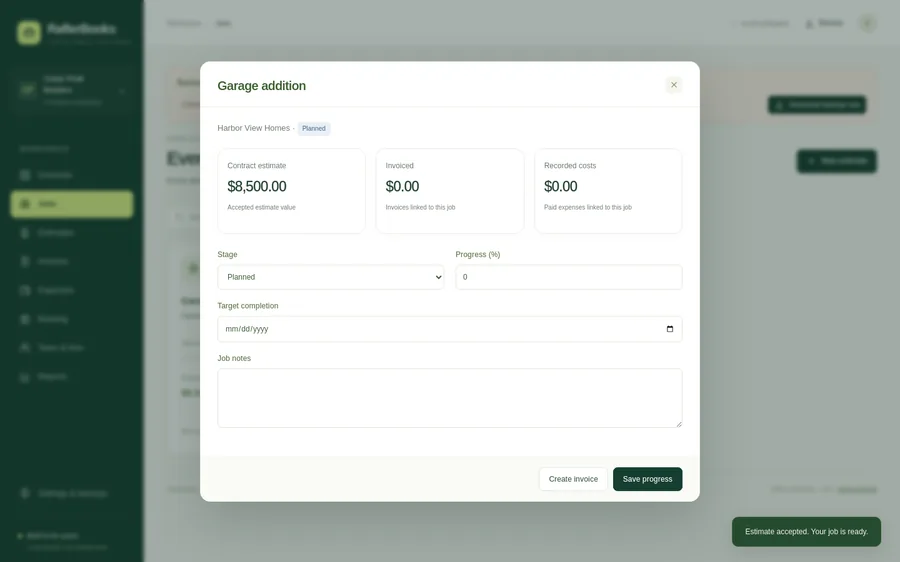
Invoices with sales tax
Set a company default tax rate (starts at 0%), override per invoice, and mark taxable lines. RafterBooks calculates totals — it does not file returns.
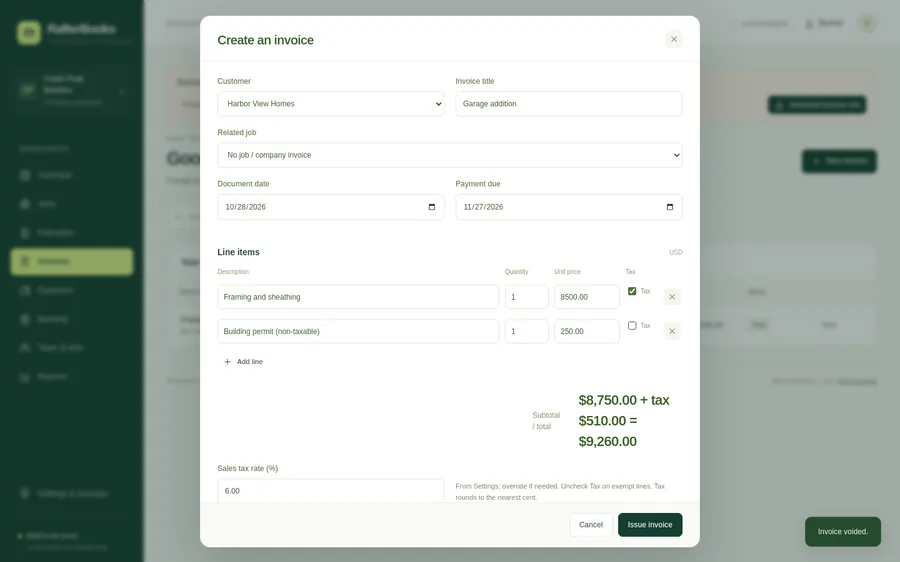
Void invoices
Void keeps the invoice number, shows VOID when printed, and drops out of outstanding totals. Clean books when a job changes.
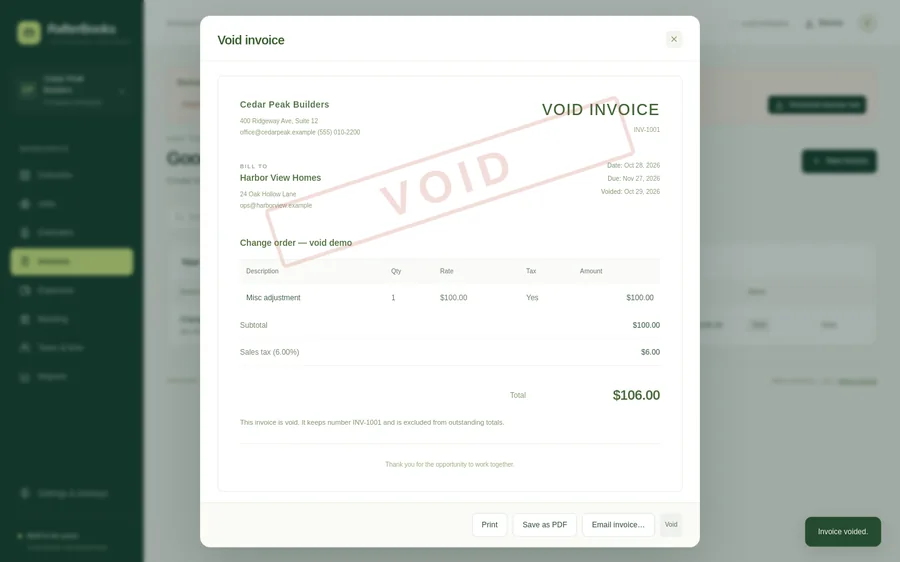
Can my customers pay by card?
Yes, through your own Square, Stripe or PayPal payment link. Your customer pays on that service, which charges its normal fee, and you record the payment in RafterBooks. RafterBooks doesn’t process cards or mark invoices paid automatically.
Add your payment link once in Settings (or the setup wizard). Invoices then print “Pay by card” with a QR code and the note “Please enter invoice INV-xxxx and the amount $X.XX”, and the same line goes into the invoice email.
Save as PDF & Email invoice
Email invoice (and Email estimate) opens the print screen, where you choose Save as PDF. Then click Open email and your own email program opens with a draft: the customer’s address, the invoice number, amount due, due date, and how to pay. You attach the PDF and send it. RafterBooks does not send email itself. In the Windows desktop app the PDF is saved for you automatically to Documents\RafterBooks\Invoices (or Estimates).
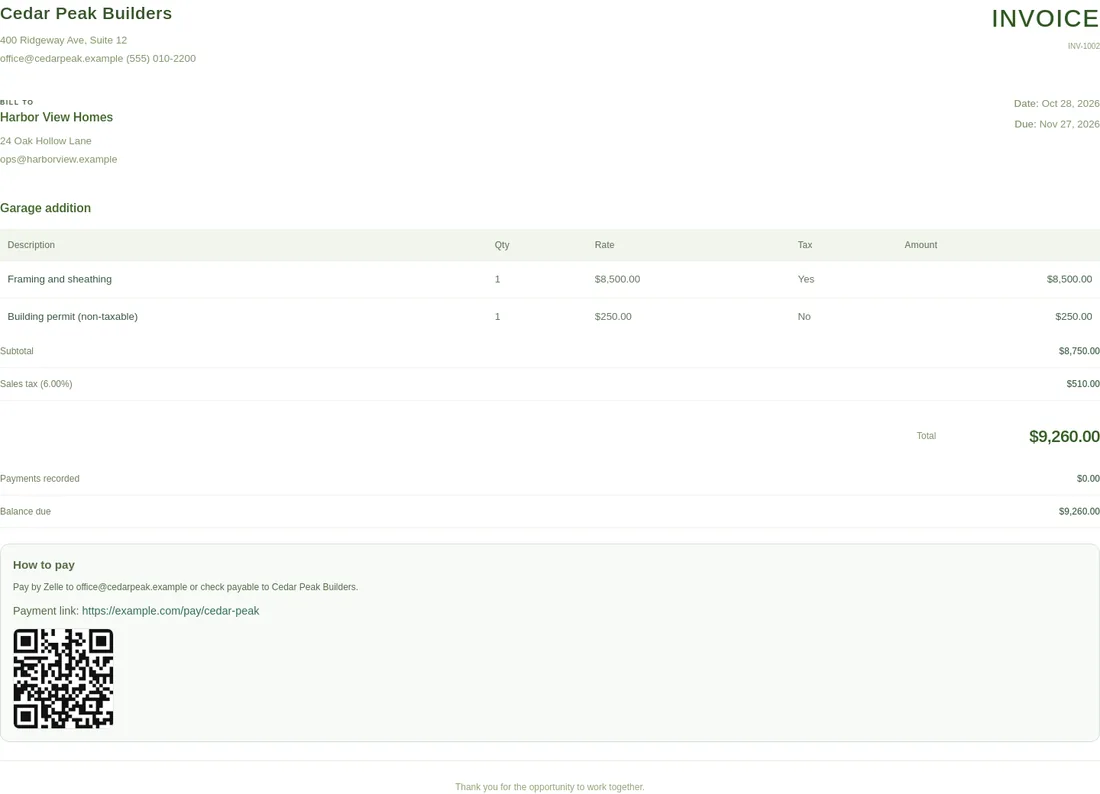
Costs, hours & reports
Track expenses and workers’ hours, review a journal snapshot, and see reports for the jobs you are running.
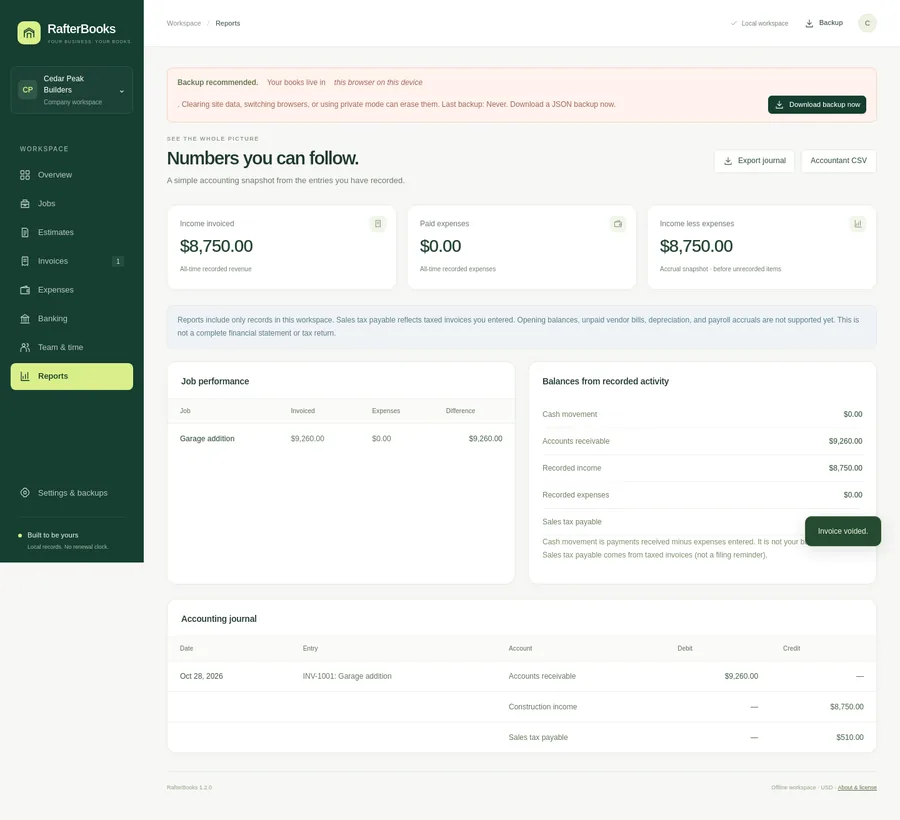
Backups that stay yours
Export and restore JSON backups in both editions. On Windows, changes auto-save to Documents\RafterBooks with rolling daily backups (last 30 days). You can put the data folder in OneDrive or Dropbox.
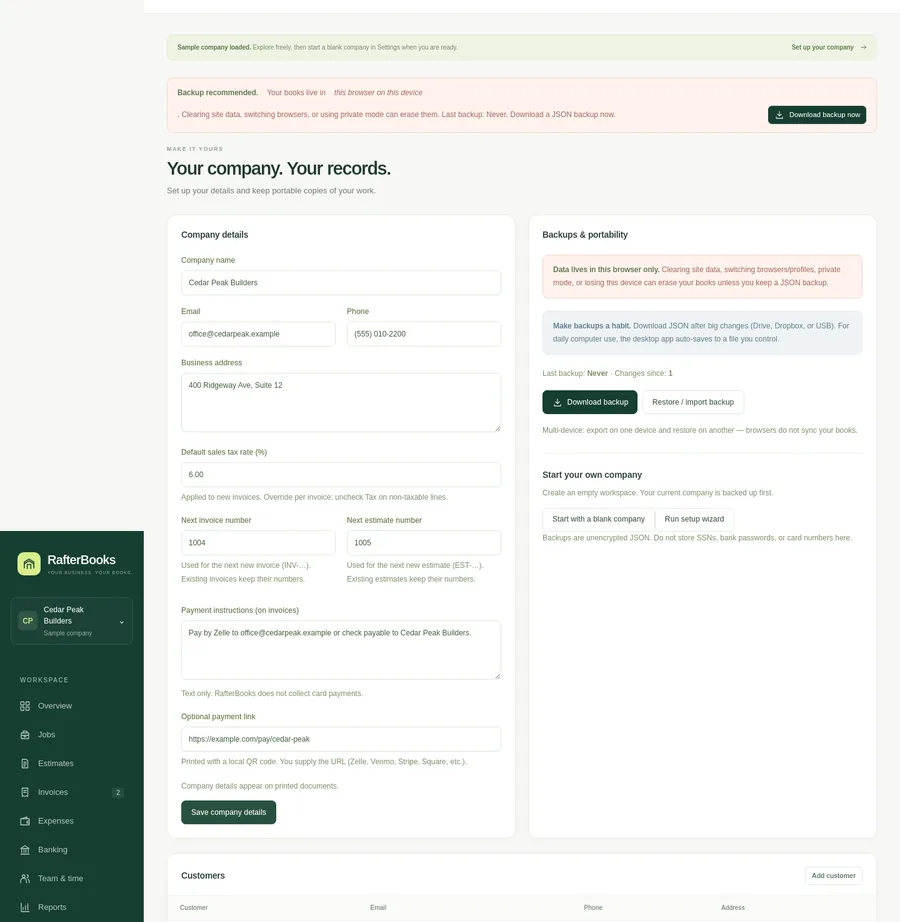
Setup wizard
A first-run setup wizard walks you through company basics so you are not staring at a blank screen.
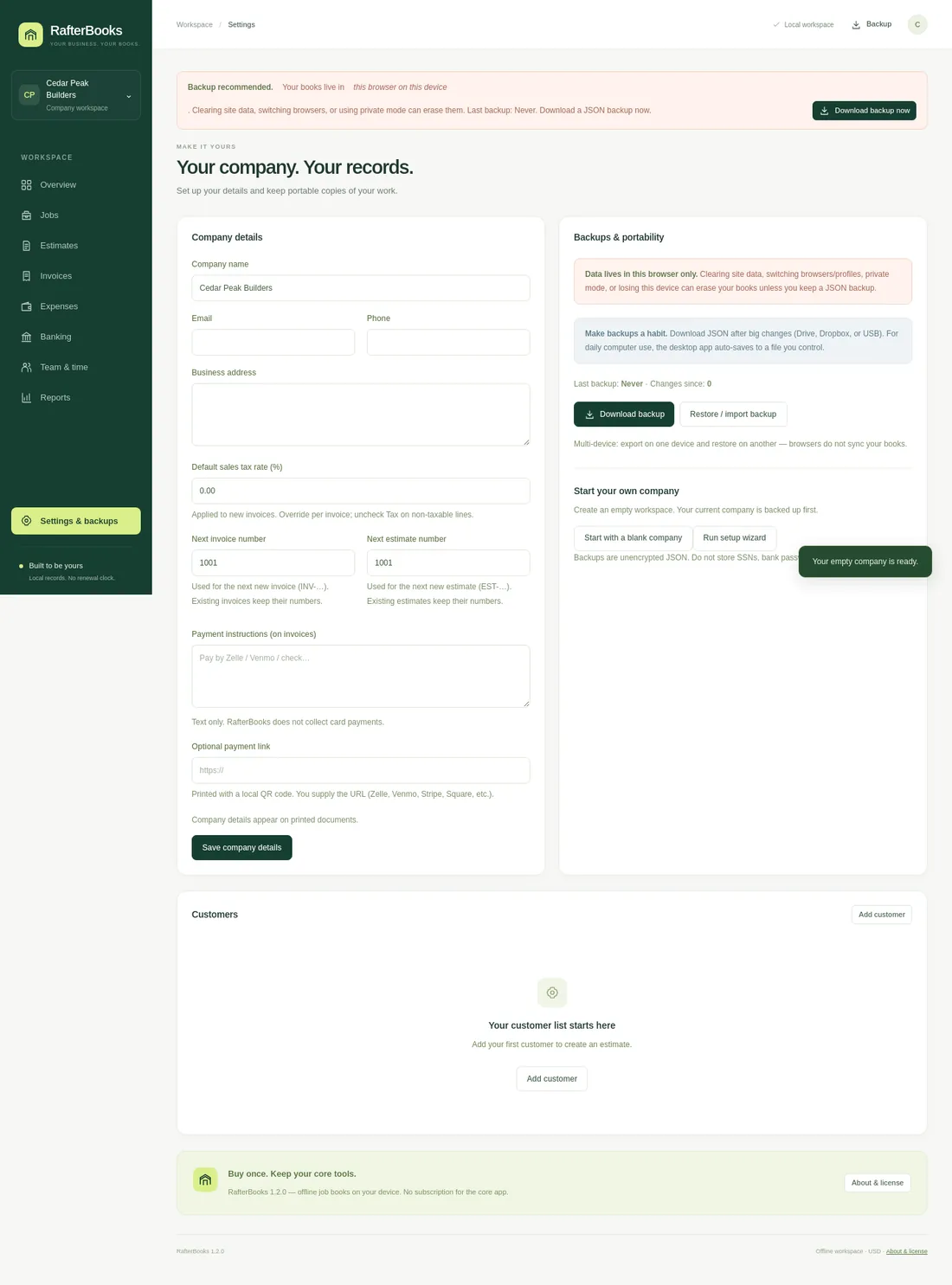
Payment instructions & overdue
Add payment instructions on invoices, with an optional payment link and QR code for how you already take money. RafterBooks does not process cards. Overview shows an overdue invoices list.
Estimate → invoice & CSV export
Create an invoice from an accepted estimate. Export a CSV for your accountant. Better phone-screen layout in the browser edition for quick looks.

Two ways to run it
Same features. Same purchase. Switch anytime with a JSON backup.
Browser · Windows
Browser edition
Single HTML file. Open in Chrome or Edge on Windows, or in Chrome on Mac (Safari support being tested). Data stays in that browser. Export backups from Settings. Improved phone-screen layout for quick looks. No network calls after download. Or try it free in your browser, up to 5 invoices, no signup.
Windows desktop
Auto-saves to Documents\RafterBooks. Daily backups. You can put the data folder in OneDrive or Dropbox (or a USB path).
Windows SmartScreen
A short note about the unsigned Windows program.
What you’ll see
Windows SmartScreen often blocks brand-new publishers. RafterBooks for Windows is not code-signed yet, so you may see “Windows protected your PC.”
- Click More info.
- Click Run anyway.
Prefer to skip SmartScreen?
Open RafterBooks.html in Chrome or Edge on Windows, or in Chrome on Mac (Safari support being tested). Same features — your purchase includes both editions. Export a JSON backup anytime if you later switch to the Windows program.
System requirements
Browser edition
Desktop or laptop recommended. Chrome or Edge on Windows, or Chrome on Mac (Safari support being tested). JavaScript and local storage enabled. Optional printer / Print to PDF. No internet needed after download.
Windows program
Windows 10 or 11, 64-bit. About 300 MB free disk for the app plus room for your data file. No internet needed after download.
Mac
A native Mac desktop app is not included. On a Mac, use Chrome (Safari support being tested).
See pricing
Founding price $59 for the first 20 buyers (list $79), code FOUNDING. One-time. Browser · Windows. All future updates are free, forever. Try it free in your browser, up to 5 invoices, no signup. Buy at launch; download a backup from the demo and import it into the full version to keep everything.Buy when you're ready; download a backup from the demo and open it in the full version to keep everything. Ask within 14 days of purchase for a full refund, no questions asked.
At launch, code FOUNDING will be applied automatically at checkout for the $59 founding price (first 20 buyers). If it isn’t, enter FOUNDING to save $20.